
Referrals: links, invites and commissions
Referrals is the hub for Ren partners. It appears in the sidebar for admins of partner workspaces. (It used to be called Partner Portal.)
On a free trial instead? Get more Ren is how you share Ren to earn more conversations. See Usage & Billing.
Getting started
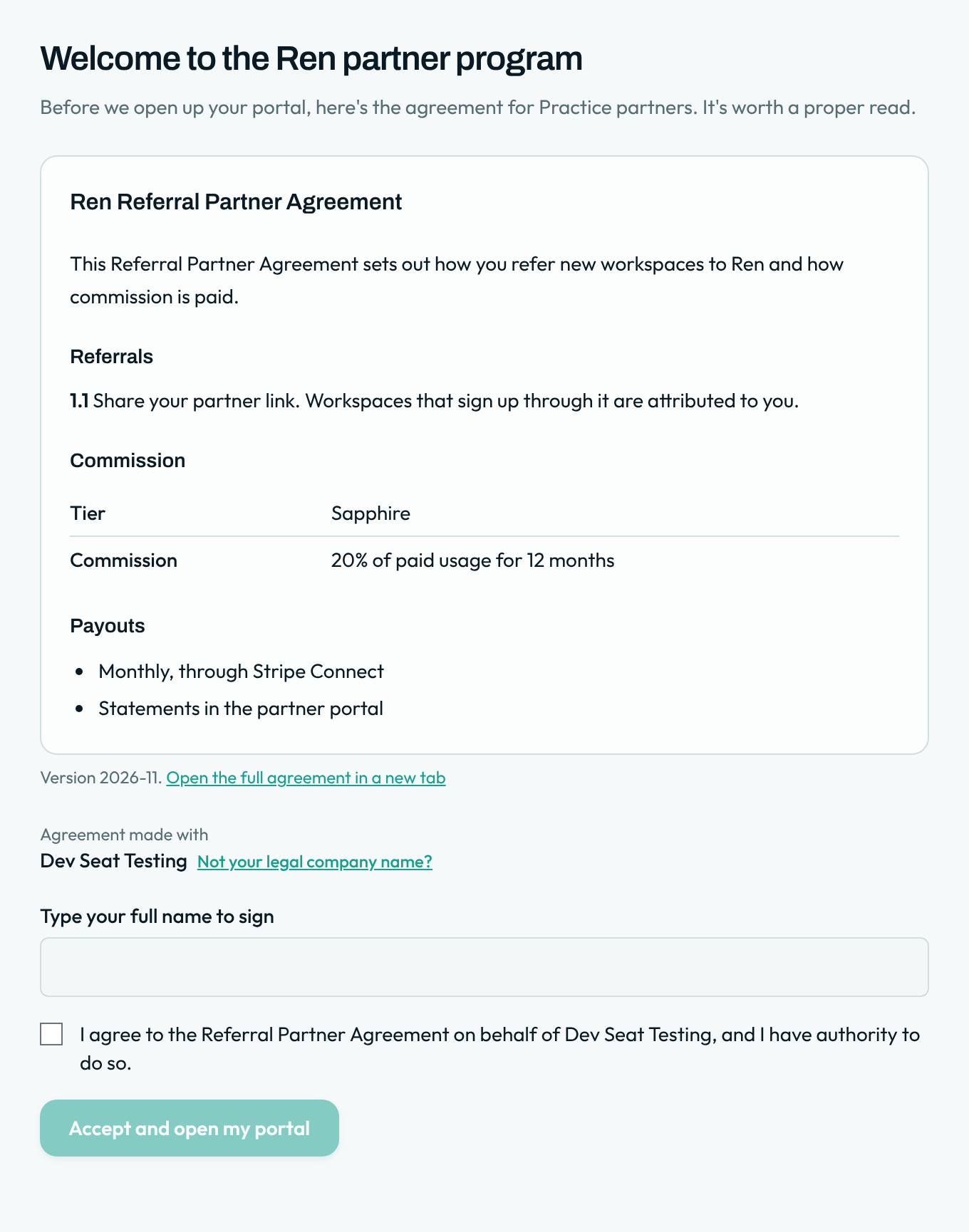
The first time you open Referrals, you'll see your Referral Partner Agreement: your tier, commission and how payouts work. Type your full name to sign, tick the box to agree on behalf of your company, and click Accept and open my portal. Wrong company name? Click Not your legal company name?
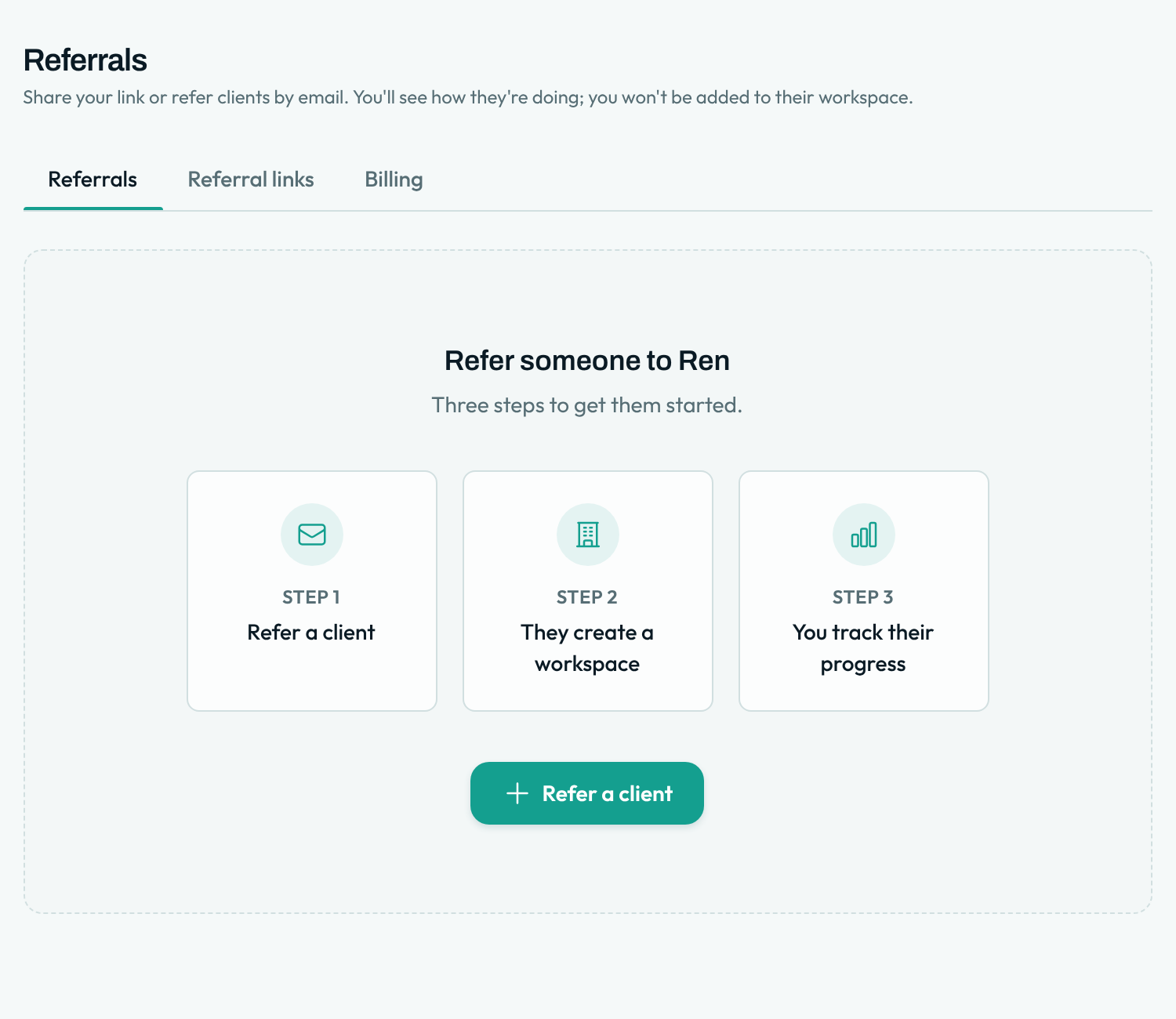
Referrals has three tabs: Referrals, Referral links and Billing. You'll see how your clients are doing, but you won't be added to their workspace.
Inviting clients
Click Refer a client to send a client an invite by email. They create a workspace, and you track their progress here. Pending invites show up in your list, and you can delete one you no longer need.
Referral links
- Create a referral link and copy it to share.
- Each link shows its clicks and conversions.
- Deactivate, reactivate or delete a link any time.
Commissions
- See each client, what they were charged (plan billing or credit top-ups), and your commission.
- New commissions sit in a 30-day hold, then become Available to withdraw.
- Estimated monthly figures are estimates only; your commission statement is the final figure.
Getting paid
Payouts go through Stripe Connect, monthly, with statements in your portal. Click Connect Stripe to get paid and finish Stripe's setup. If you leave partway, Finish Stripe setup picks up where you left off.
Questions about your agreement or a payout? Email support@tryren.com.