
Connecting Ren to Cursor
Chat with Ren from inside Cursor: prep a 1:1, draft a Mention, or check on your team without leaving your editor.
Before you start
A Ren account with onboarding complete, in a workspace with an active subscription or trial.
1. Connect
In Ren, open Connectors and pick Cursor to copy the server URL or the mcp.json snippet.
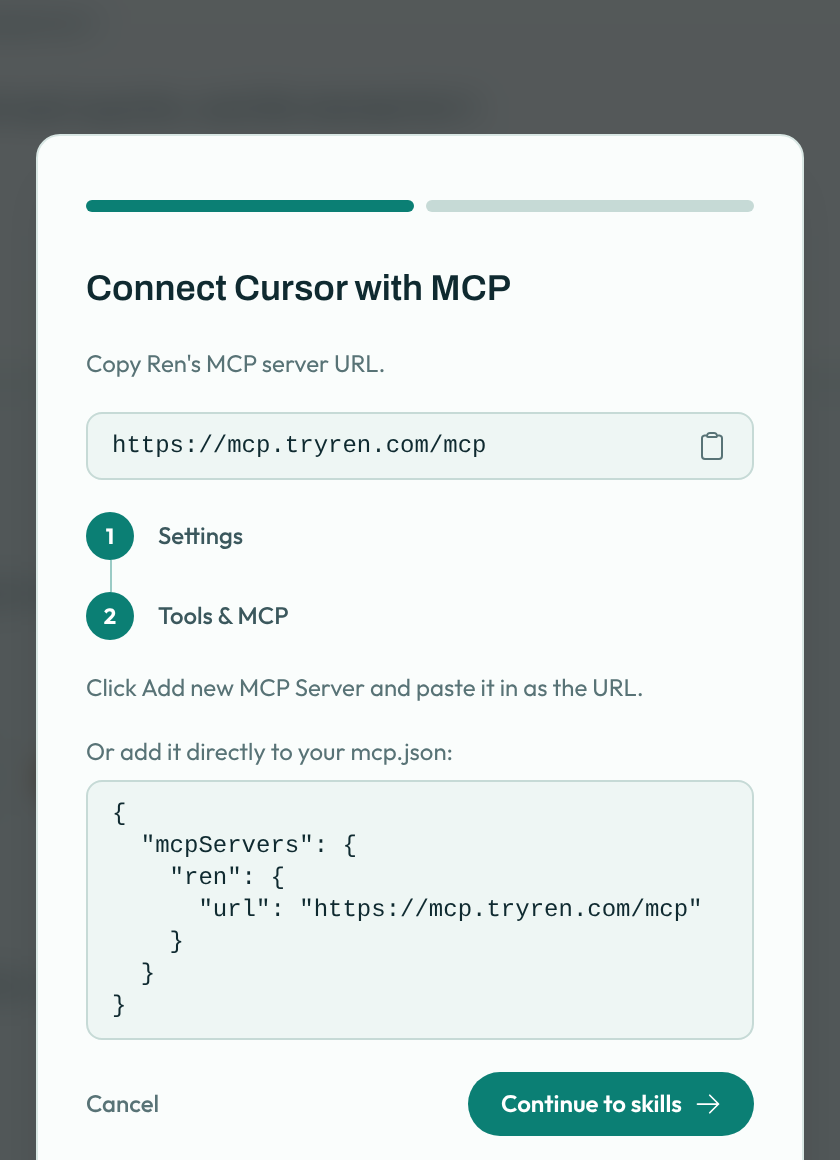
- Open Cursor settings and go to Tools & MCP. Click Add new MCP Server and paste
https://mcp.tryren.com/mcpas the URL. - Or add Ren directly to your
mcp.jsonand save:{ "mcpServers": { "ren": { "url": "https://mcp.tryren.com/mcp" } } } - Ren appears in the MCP list and asks you to log in. Click it and sign in with your Ren account in the browser window.
Where the file goes: ~/.cursor/mcp.json to use Ren everywhere, or .cursor/mcp.json inside one project to use it there only.
2. Add Ren's skills
Back in Ren, click Continue to skills and Download all skills. Add them following the steps shown. Skills tell Cursor when to bring Ren in.
Ren doesn't show up?
Restart Cursor, then check the MCP list again.
See What Ren can do in your AI tools for everything it can do, and how your data is handled.