
Connecting Ren to Claude
Chat with Ren from inside Claude: prep a 1:1, run a daily check-in, work through a situation, or check your team's health without leaving the conversation.
Before you start
- A Ren account with onboarding complete, in a workspace with an active subscription or trial.
- A Claude plan that supports custom connectors.
1. Add Ren as a connector
In Ren, open Connectors and pick Claude to copy the server URL and see these steps.
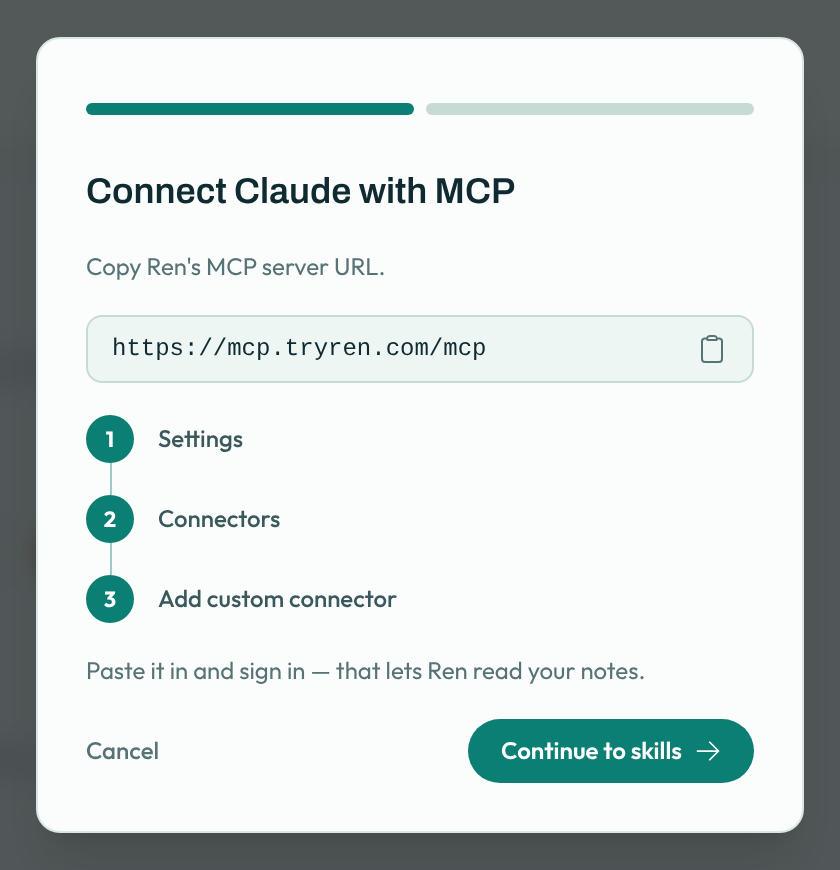
- In Claude, open Settings → Customize → Connectors.
- Click + Add and choose Add custom connector.
- Name it Ren and enter the server URL:
https://mcp.tryren.com/mcp - Leave the defaults: Authentication: Sign in now and OAuth client: Use Claude's published identity. Click Connect.
- Sign in with your Ren account. No API token is needed.
Ren now shows under Your connectors. You can choose which Ren tools Claude can use on its own and which need your approval.
2. Add Ren's skills
- Back in Ren, click Continue to skills, then Download all skills. This downloads
ren-skills.zip. - In Claude, open Settings → Customize → Skills, click + Add and upload the skill files. You can add several at once.
Prefer not to install them? Drag Ren's skill files into a Claude chat to use them in that conversation.
Skills tell Claude when and how to bring Ren in: getting started, your daily brief, 1:1 prep and close-out, Dial-aware feedback, a weekly team pulse, and sending a meeting transcript to Ren.
3. Check it works
Start a new chat and ask "Is Ren connected?" Claude should list your Ren workspace. Then try "Help me prep for my 1:1 with Sam."
See What Ren can do in your AI tools for everything it can do, and how your data is handled.